
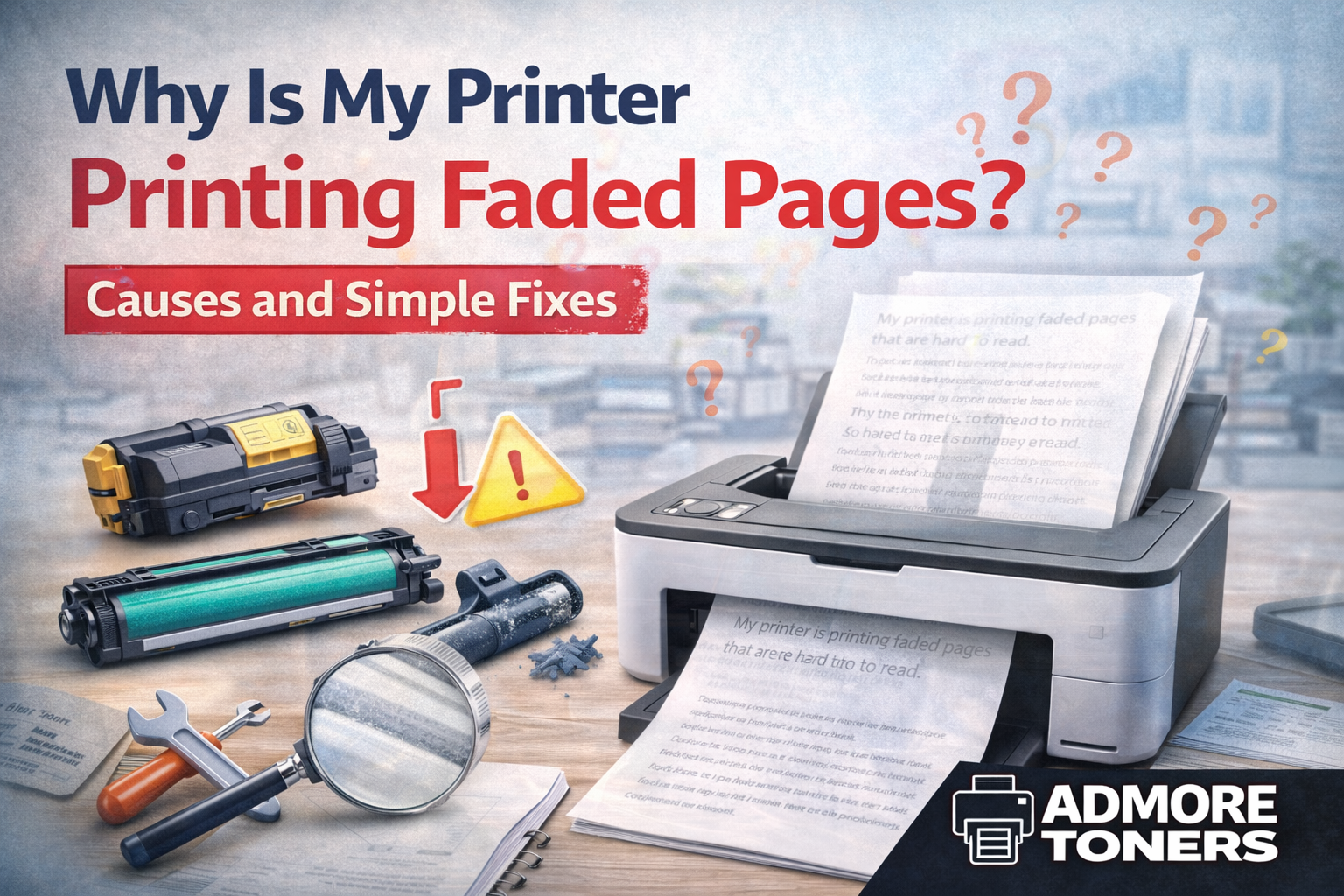
Printing faded pages is one of the most common problems people experience with laser printers. Documents may look light, uneven, or difficult to read, which can be frustrating when you need clear, professional prints for work.
The good news is that faded printing usually has a simple cause. In most cases, the issue is related to toner levels, printer settings, or worn components.
This guide explains why your printer may be printing faded pages and shows you practical steps to fix the problem.
1. Low Toner Cartridge
The most common reason for faded prints is a low toner cartridge.
When toner levels drop, the printer cannot apply enough toner powder to the paper. This results in text and images appearing lighter than normal.
How to fix it
- Check your printer’s toner level indicator.
- If the toner is almost empty, replace the cartridge.
- If the printer recently showed a low toner warning, gently shake the cartridge from side to side to redistribute the remaining toner. This can temporarily improve print quality.
For consistent print quality, replacing the toner cartridge is the best solution.
2. Toner Cartridge Not Installed Properly
If a toner cartridge is not seated correctly inside the printer, toner may not transfer properly to the drum unit. This can lead to faded or patchy prints.
How to fix it
- Turn off the printer.
- Remove the toner cartridge.
- Reinstall it carefully and ensure it locks into position.
After reinstalling the cartridge, print a test page to check the results.
3. Printer Is in Toner Save Mode
Many laser printers include a toner saving mode designed to reduce toner usage. While this helps extend cartridge life, it can also cause prints to appear lighter than usual.
How to fix it
Check your printer settings and disable toner saving mode.
Steps usually include:
- Open printer settings on your computer.
- Locate print quality settings.
- Turn off Toner Save Mode or select Normal / High Quality printing.
Once this setting is adjusted, print quality should improve.
4. Worn Drum Unit
The drum unit plays a critical role in transferring toner to paper. Over time, drum units wear out and may produce faded prints, lines, or uneven colour distribution.
Many printers use separate drum units that must be replaced periodically.
Signs of a worn drum unit
- Faded or patchy prints
- Repeating marks on pages
- Uneven colour or grey areas
How to fix it
Check your printer manual or maintenance settings to see whether the drum unit needs replacing.
5. Low Print Density Settings
Your printer allows adjustments to print density, which controls how dark prints appear.
If the density setting is too low, documents will appear faded.
How to fix it
Increase the print density in your printer settings.
Typical steps include:
- Opening printer settings
- Selecting print quality
- Increasing density or darkness level
6. Poor Quality or Incompatible Toner
Using low-quality or incompatible toner cartridges can also lead to faded prints. Poor toner formulation may not bond properly to the drum or paper.
How to fix it
Use reliable toner cartridges that are designed specifically for your printer model.
Quality cartridges provide:
- consistent page yield
- clear text and graphics
- reliable printer performance
7. Dirty Printer Components
Dust or toner buildup inside the printer can affect print quality.
This may prevent toner from transferring properly to the paper.
How to fix it
- Clean accessible printer components carefully.
- Use a lint-free cloth to remove loose toner.
- Run the printer’s built-in cleaning cycle if available.
Avoid touching the drum surface directly, as this can damage it.
How to Prevent Faded Printing
You can avoid most printing issues by following a few simple maintenance practices.
Best practices include:
- replacing toner cartridges before they completely run out
- storing toner cartridges properly in a cool, dry place
- using high-quality toner cartridges
- regularly cleaning the printer
- updating printer drivers and firmware
Routine maintenance helps maintain consistent print quality and prevents unexpected downtime.
When to Replace Your Toner Cartridge
If shaking the toner cartridge or adjusting settings does not improve print quality, the cartridge may be completely empty.
Replacing the toner cartridge is often the fastest and most effective solution.
Reliable toner cartridges ensure:
- clear professional documents
- consistent page yield
- smooth printer operation
Find Reliable Toner Cartridges for Your Printer
If your printer is producing faded prints, replacing the toner cartridge with a reliable option can restore print quality quickly.
At Admore Toners, we supply toner cartridges compatible with a wide range of laser printers used by businesses across the UK. Our toner solutions are designed to deliver consistent print quality, dependable performance, and cost-effective printing for offices of all sizes.
Explore our range of toner cartridges to keep your printer running efficiently and your documents looking professional.
Frequently Asked Questions
Why does my printer print faded after replacing toner?
This may happen if the cartridge is not installed correctly, the drum unit is worn, or toner saving mode is enabled.
Can shaking a toner cartridge fix faded prints?
Yes, shaking a toner cartridge can redistribute the remaining toner and temporarily improve print quality. However, it is only a short-term solution.
Can printer settings cause faded prints?
Yes. Toner saving mode or low print density settings can cause documents to appear lighter than normal.